---
updatedAt: 2026-10-05T10:08:14.000Z
agentTools:
projectIndex: https://apidoc.factorialhr.com/llms.txt
---
# API Keys Setup Guide
Complete step-by-step guide for creating and managing API Keys
## Overview
This guide walks you through setting up API Key authentication with Factorial. API Keys are the simplest way to authenticate against the Factorial API as no OAuth flow is required.
## Prerequisites
Before starting, make sure you have:
* Admin access to Factorial HR
* Access to the correct environment: Production or Demo
**How to choose your environment: ****Environments: Production and Demo**
## Understanding API Keys
An API Key provides **company-wide access** to Factorial data. All requests are authenticated on behalf of the company.
| Property | Details |
| ----------------- | --------------------------------------------------------------------- |
| **Lifetime** | Does not expire (but can be revoked) |
| **Use case** | Simple integrations that need full company data without an OAuth flow |
| **Permissions** | Full access to all company data |
| **How it's sent** | As a header: `x-api-key: ` |
### **API Keys vs OAuth Tokens:** API Keys are simpler to set up but offer less granular access control than Company or User Tokens. If your integration requires user-scoped permissions, use OAuth 2.0 instead. See the \[OAuth 2.0 Setup Guide].
## Creating an API Key
### Step 1 — Navigate to API Keys
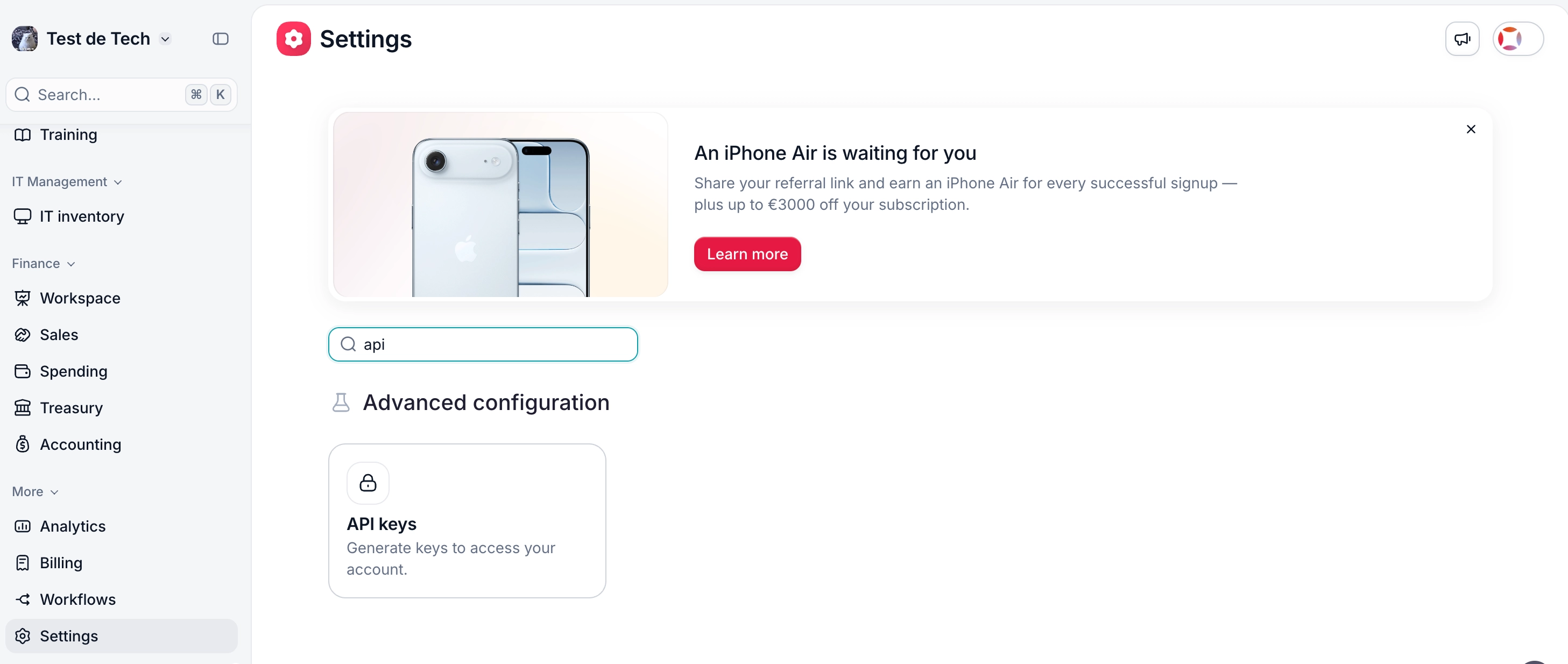
1. Log in to Factorial with your admin account.
2. Go to **Settings → API Keys**.
### Step 2 — Create a New API Key
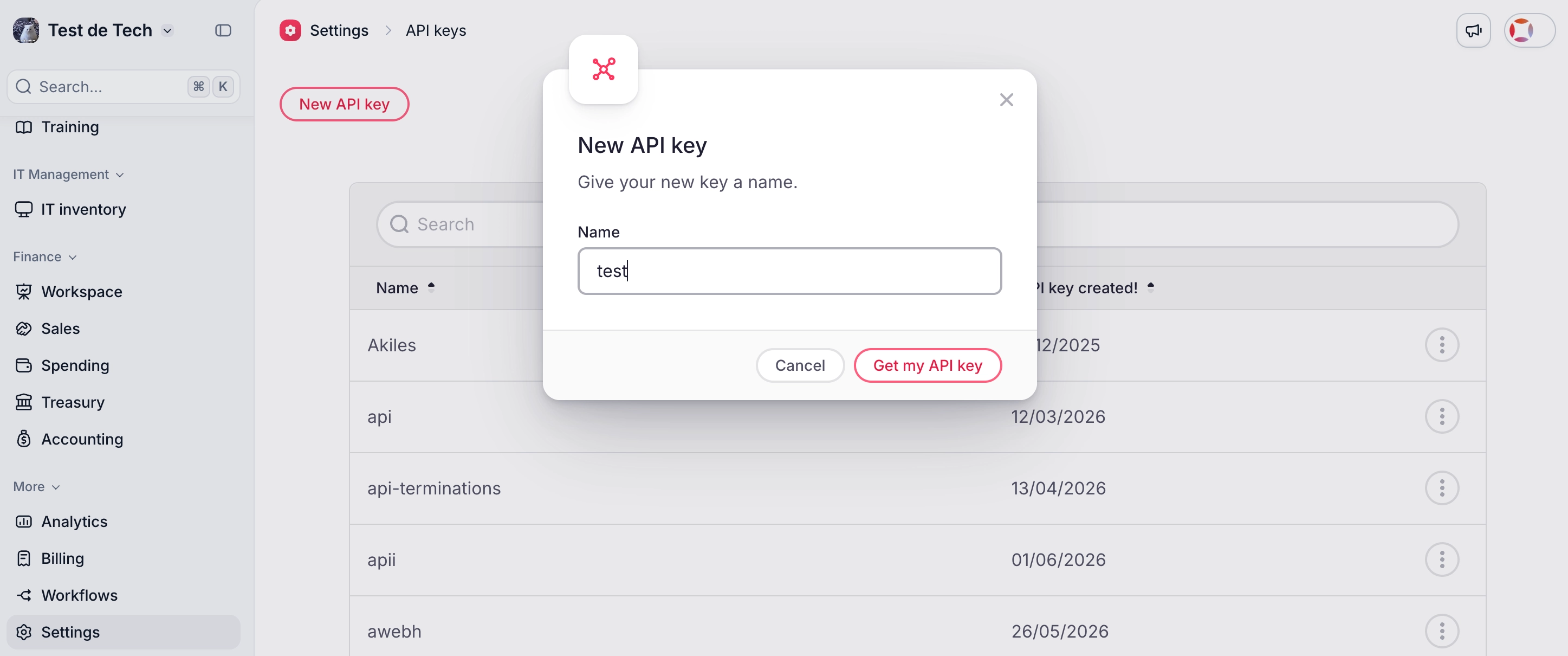
1. Click **"New API Key"**.
2. Give the key a descriptive name, for example, the name of the integration or external system it will be used for (e.g., `PowerBI Integration`, `Zucchetti Sync`).
3. Click **"Get my API Key"**.
### **Best practice:** Use one API key per integration. This makes it easier to revoke access for a specific integration without affecting others.
### Step 3 — Copy and Store the Key
1. Copy the generated API key immediately and store it in a secure location (e.g., a password manager or secrets vault).
2. The key **will not be shown again** after you close this screen.
### **Important:** If you lose the key, you will need to revoke it and create a new one.
## Using the API Key
Include the key in every API request using the `x-api-key` header:
```
--url 'https://api.factorialhr.com/api/2026-10-01/resources/employees/employees?only_active=true&only_managers=true' \
--header 'accept: application/json' \
--header 'x-api-key: YOUR-API-KEY'
```
## Revoking an API Key
If a key is compromised or no longer needed:
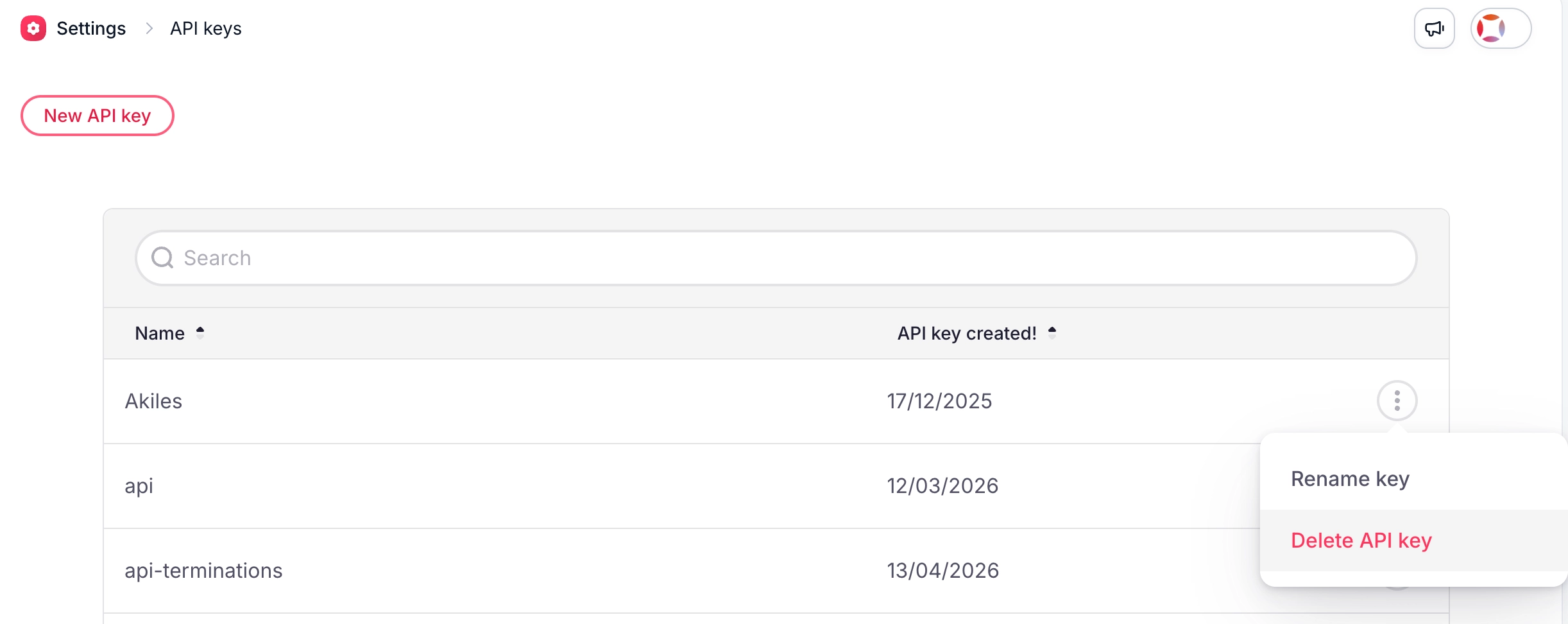
1. Go to **Settings → API Keys**.
2. Find the key you want to remove.
3. Click the three dots and **"Delete API Key"**.
### **Important:** Once revoked, any integration using that key will immediately lose access.
# Support
If you have any issues or questions about the API, don't hesitate to get in touch with our Tech Support team by filling out one of the following forms:
> **➡️ ****Partner Developers Tech Support**
> **➡️ ****Clients Customer Support**