

Partner guide - Company token
Main advantages
- Anyone can use it (in case the company provides permission to connect with it)
- Has all permissions enabled (like an API KEY)
Step 1 - Create and manage the OAuth application
Create and manage the OAuth application in Factorial: Settings → Advanced configuration → OAuth applications.
There, configure the application name, redirect URIs, scopes, and client credentials. The OAuth applications portal is available at https://app.factorialhr.com/settings/oauth-applications. The whole process can be tested in a demo environment as well, from the same Settings path in your demo company.
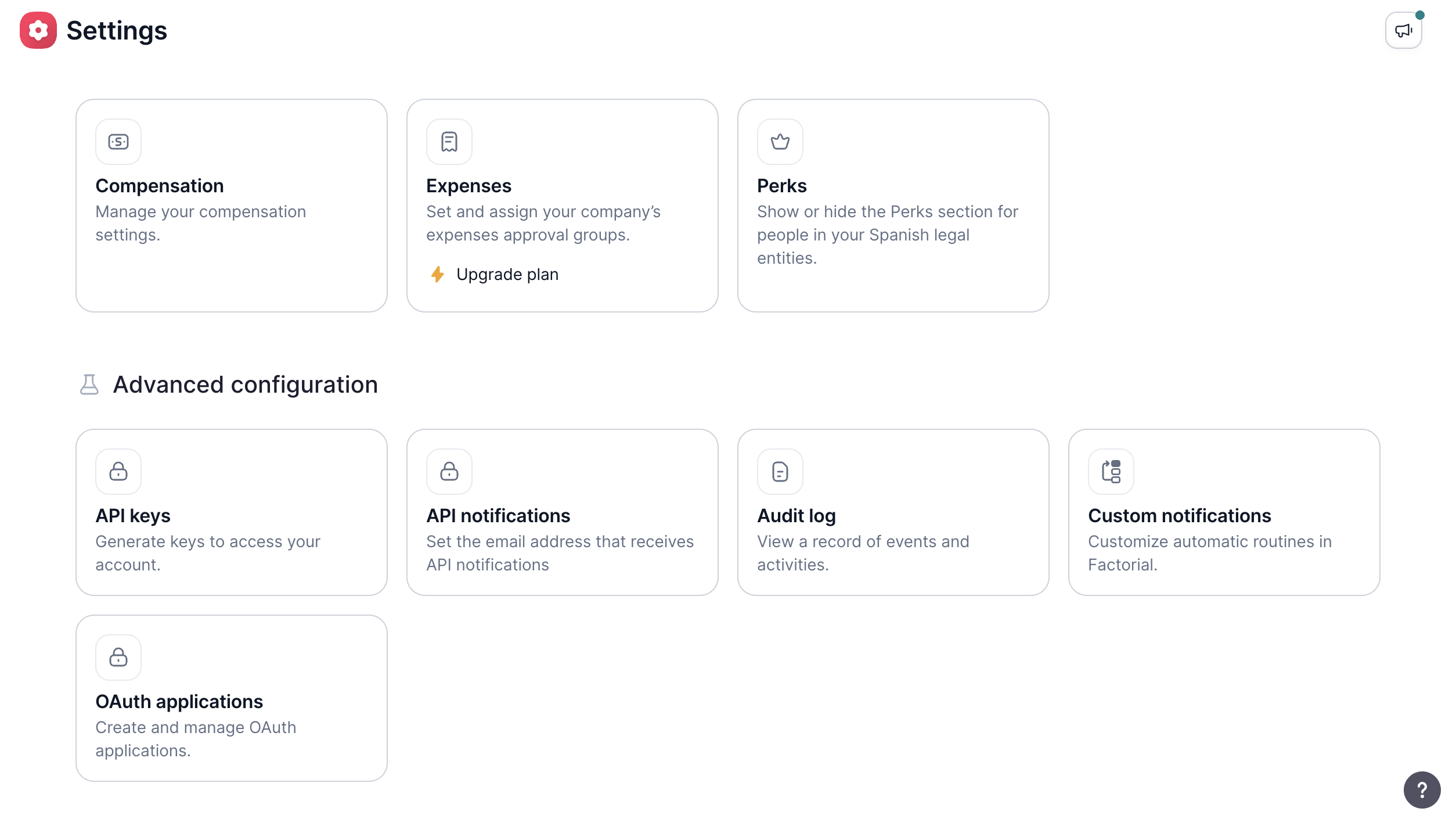
Open OAuth applications from Settings → Advanced configuration.
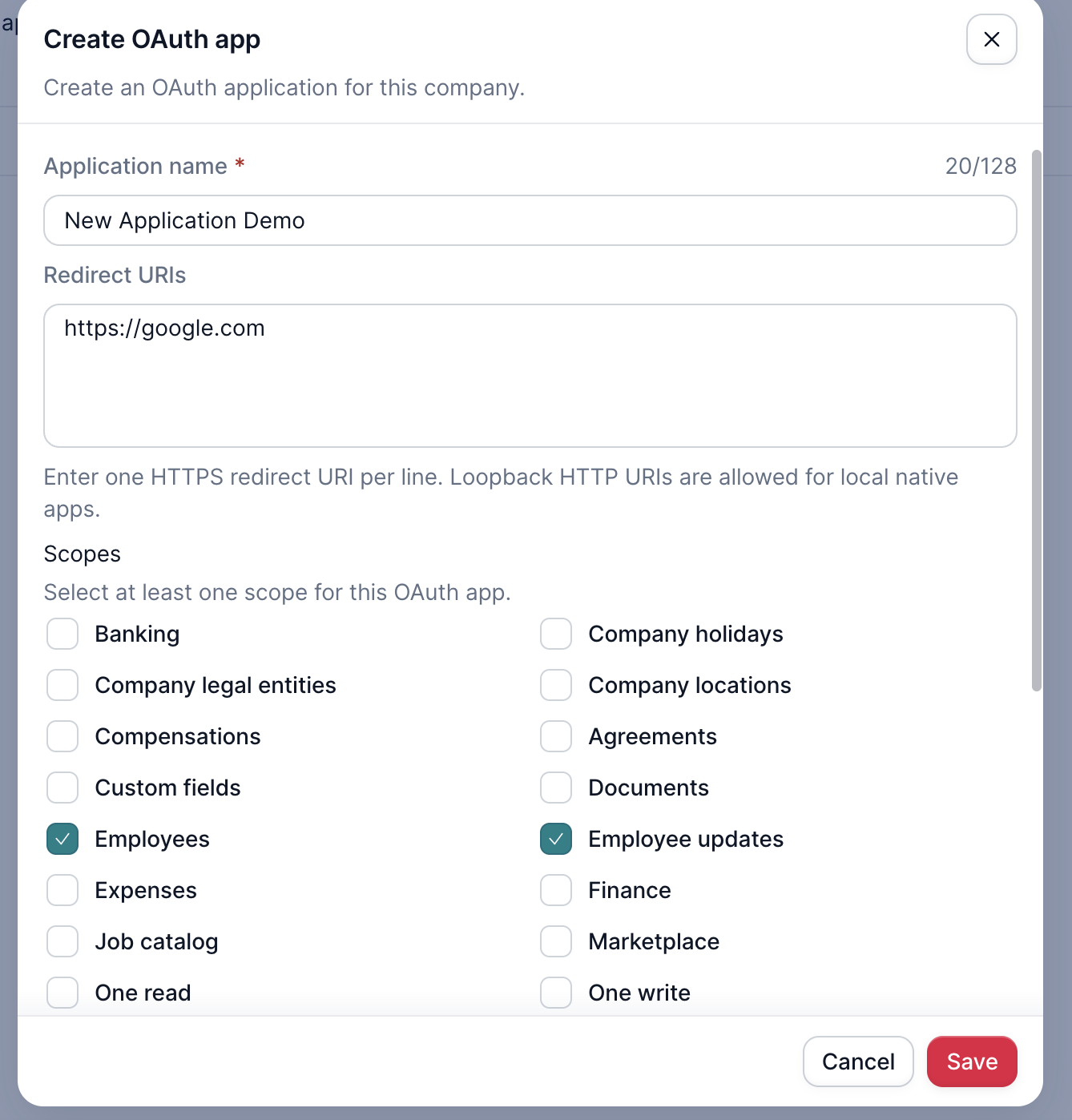
Configure the application name, redirect URIs, and scopes in the portal.
- In Factorial, open Settings.
- Under Advanced configuration, select OAuth applications.
- Select Create OAuth app.
- Enter the application name, one redirect URI per line, and the scopes the integration needs. The
redirect_uriis the endpoint in which the partner will receive the authorization code (this is described in the next step). - Choose the client type:
- Confidential client with secret if the application can store a client secret securely on a server.
- Public client without secret for browser, desktop, or mobile applications that cannot keep a secret.
- Select Save.
After saving, the OAuth applications page shows:
-
client_id: The unique identifier for the app -
client_secret: The confidential code for secure communication (only for a Confidential client with secret; copy it when it is shown and store it securely. If it is lost or exposed, use Rotate client secret.) -
Confidential clients run on a trusted backend and can keep a client secret private. They authenticate with that secret when exchanging an authorization code for tokens.
-
Non-confidential (public) clients run in environments where a secret cannot be protected, such as browser SPAs, mobile apps, or desktop apps. A client secret would be extractable, so it must not be relied on for authentication.
Public clients should use Authorization Code + PKCE
- Generate a random
code_verifierlocally.- Derive a
code_challengefrom it and send that with the authorization request.- Keep the verifier only in the client.
- Send the original verifier when exchanging the returned code for tokens.
Step 2 - Request authorization code:
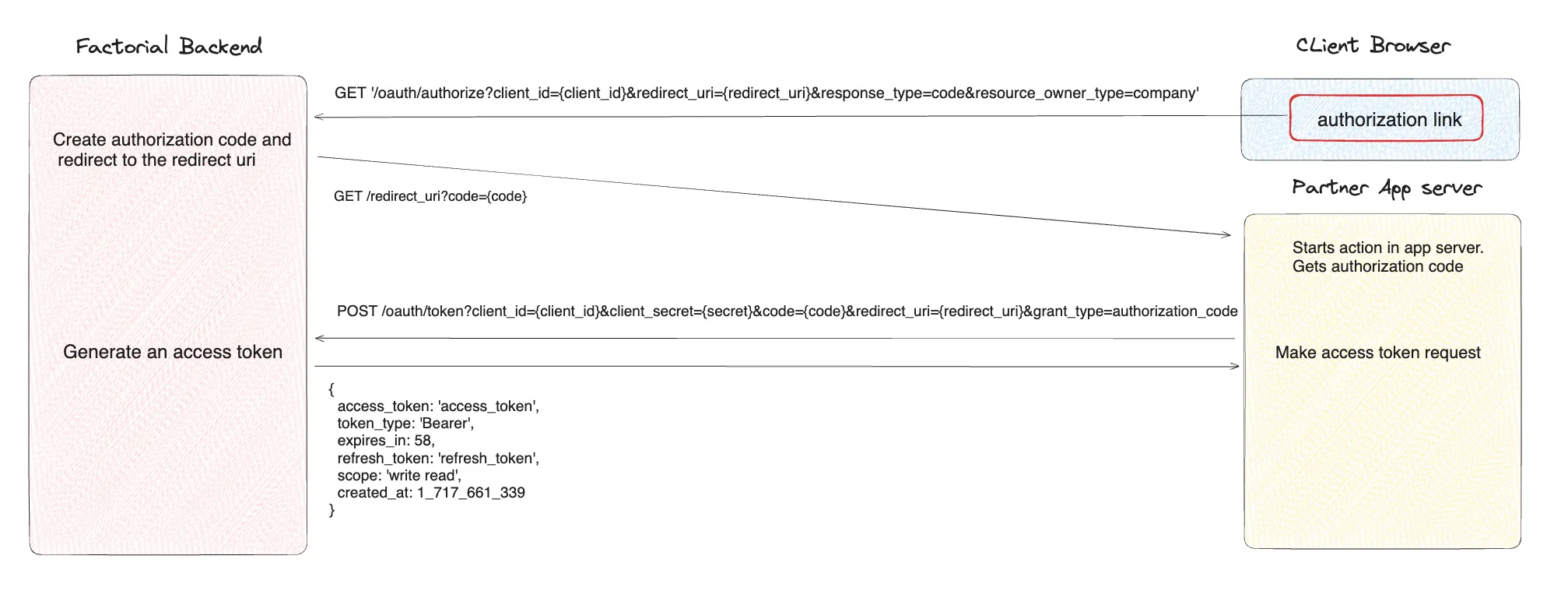
As part of the OAuth 2 protocol, the action should be started by the Factorial user. As we are asking a company_token, it is important that before clicking it a Factorial admin is logged. The link you should provide to your client is:
https://id.factorialhr.com/oauth/authorize?client_id={client_id}&redirect_uri={redirect_uri}&response_type=code&resource_owner_type=companyFor demo, use:
https://id.eu2.demo.factorial.dev/oauth/authorize?client_id={client_id}&redirect_uri={redirect_uri}&response_type=code&resource_owner_type=companyFor a public client, also add &code_challenge={code_challenge}&code_challenge_method=S256.
⚠️ NOTE: Before this initiative, Factorial already allowed users OAuth tokens. Right now the difference is that you will request a company token with this last parameter: resource_owner_type=company
Without this parameter, you will request a user one.
Before granting an authorization code, the admin should authorize the permissions needed for your app.
The administrator signs in to Factorial, reviews the requested permissions, and authorizes the application.
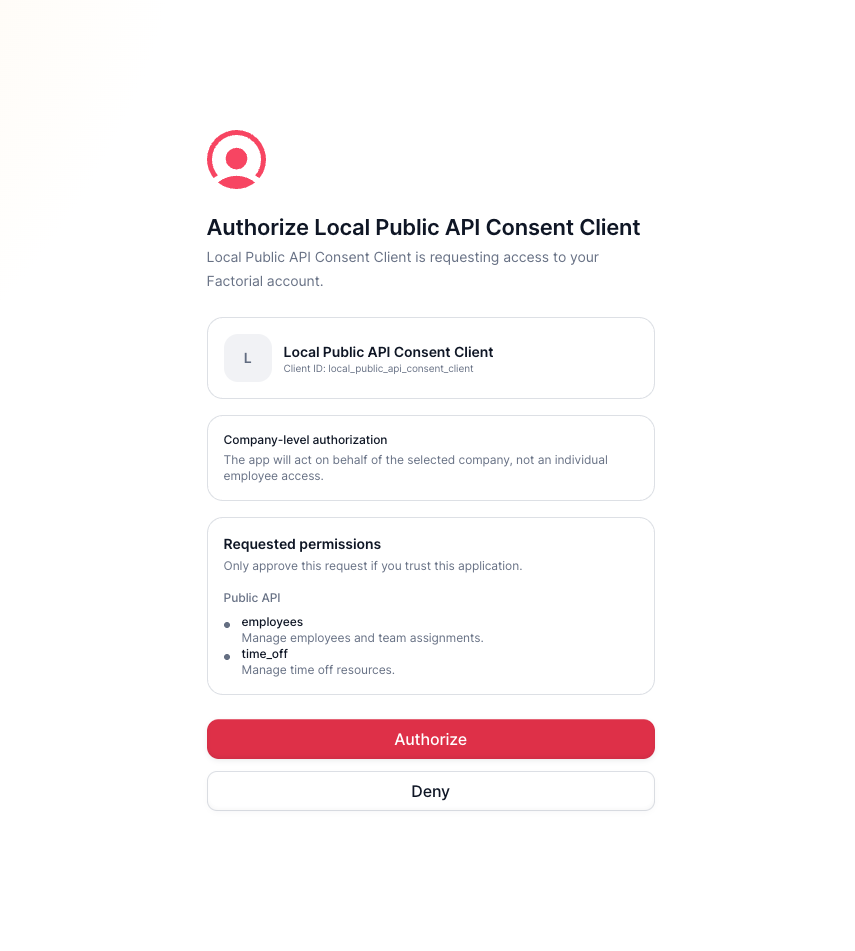
The Factorial ID consent screen.
Upon clicking "Authorize," the user will be redirected to the redirect_uri with the generated code. An example of the resulting URL is as follows:
https://embeddedapp.com?code=examplecode123
Then the Partner app receives the code and initiates the process of obtaining an access token.
Final Step:
To get a company access token from the partner app server you will need to do a POST request with the following parameters:
client_id= the Client ID shown in OAuth applicationsclient_secret= the client secret of your confidential applicationcode= (the one you received previously with the GET request = codeexample123)redirect_uri= a redirect URI registered in your OAuth applicationgrant_type= authorization_code
So it would look like the following url:POST - https://id.factorialhr.com/api/oauth/token?client_id={client_id}&client_secret={client_secret}&code={code}&redirect_uri={redirect_uri}&grant_type=authorization_code
| Environment | Token endpoint |
|---|---|
| Production | https://id.factorialhr.com/api/oauth/token |
| Demo | https://id.eu2.demo.factorial.dev/api/oauth/token |
For a public client, do not send client_secret; send the original code_verifier instead.
You will get a JSON response containing the access_token and refresh_token.
Good Job!
Following these steps, you should now be able to make requests to our API using the access_token as a Bearer token for authorization.
Make your first request to the credentials endpoint to get information about the company which refers to the obtained token.
You will only had to add a header in your requests like this:
Authorization: ‘Bearer {access-token}
The following picture illustrates an example of how we use the credentials endpoint to retrieve information about the company with which we are authenticated through the token we got before:
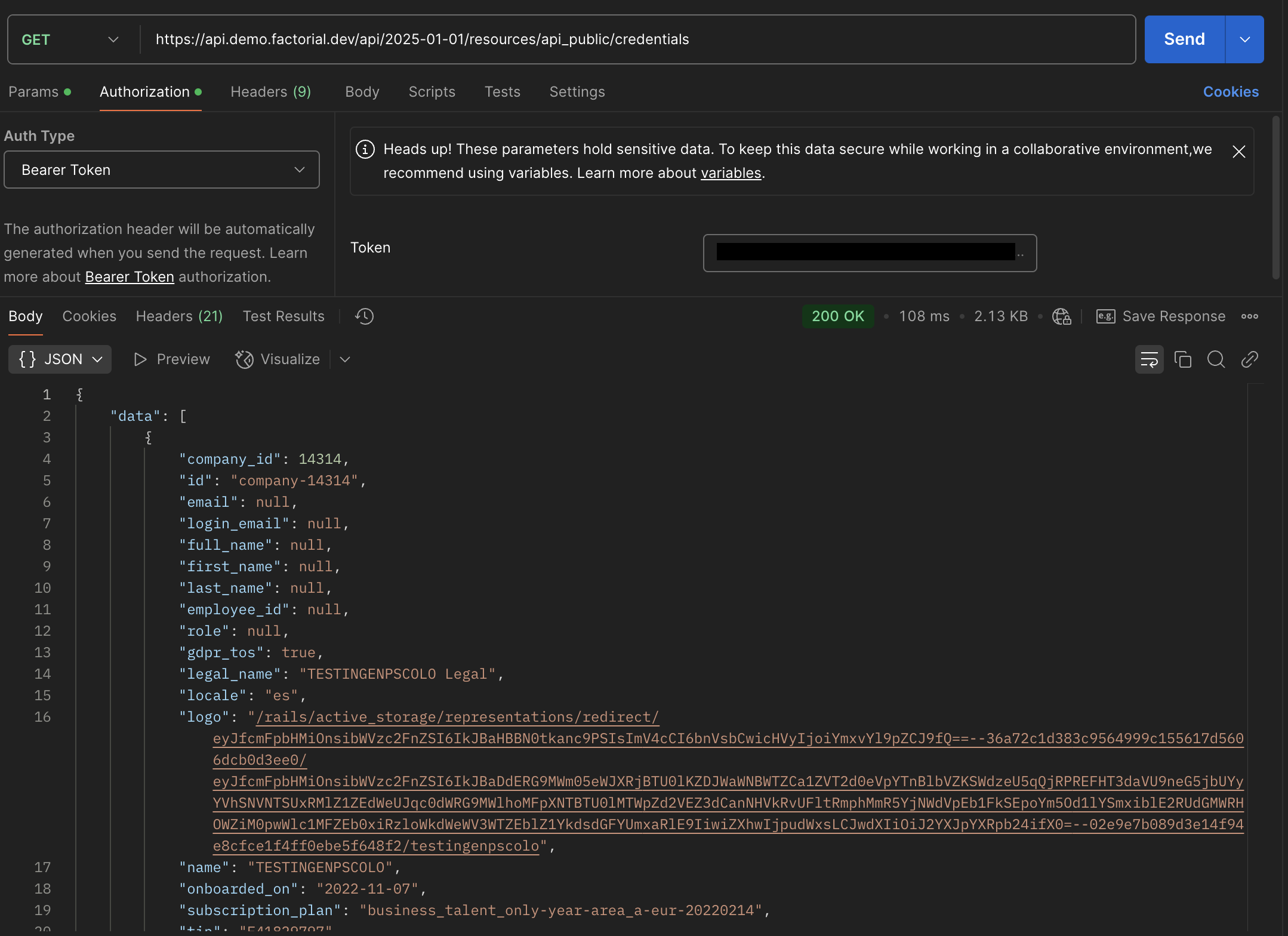
Note: You can still use both API Keys and OAuth company token until you finish your migration and switch everyone to OAuth.
Diagram flow
Updated 1 day ago