

Company Token
A Company Token provides company-wide access to Factorial data. All actions are performed on behalf of the company, not a specific user.
Create the OAuth Application
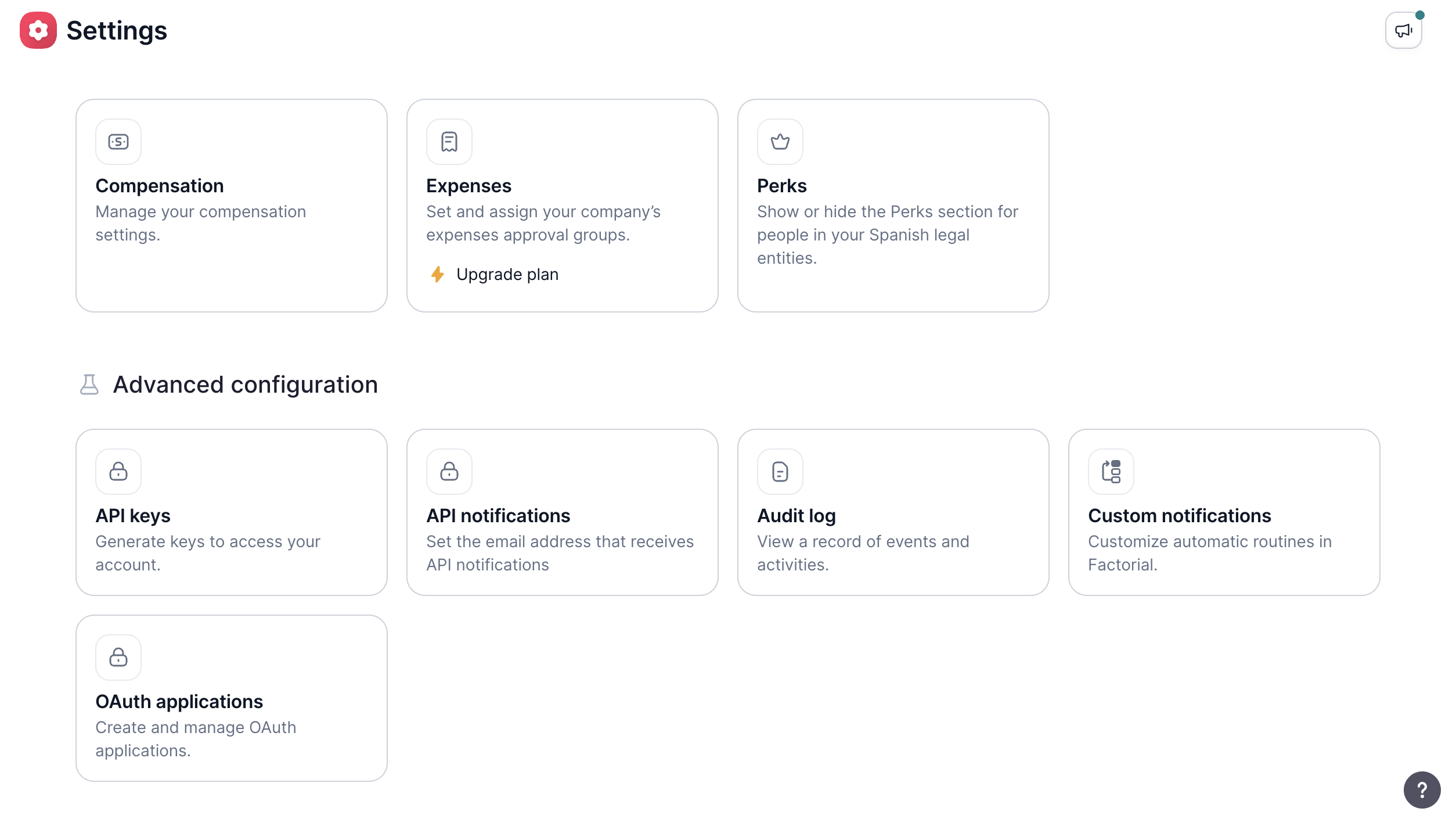
A Factorial admin creates and manages OAuth applications in Settings → Advanced configuration → OAuth applications.
- In Factorial, open Settings.
- Under Advanced configuration, select OAuth applications.
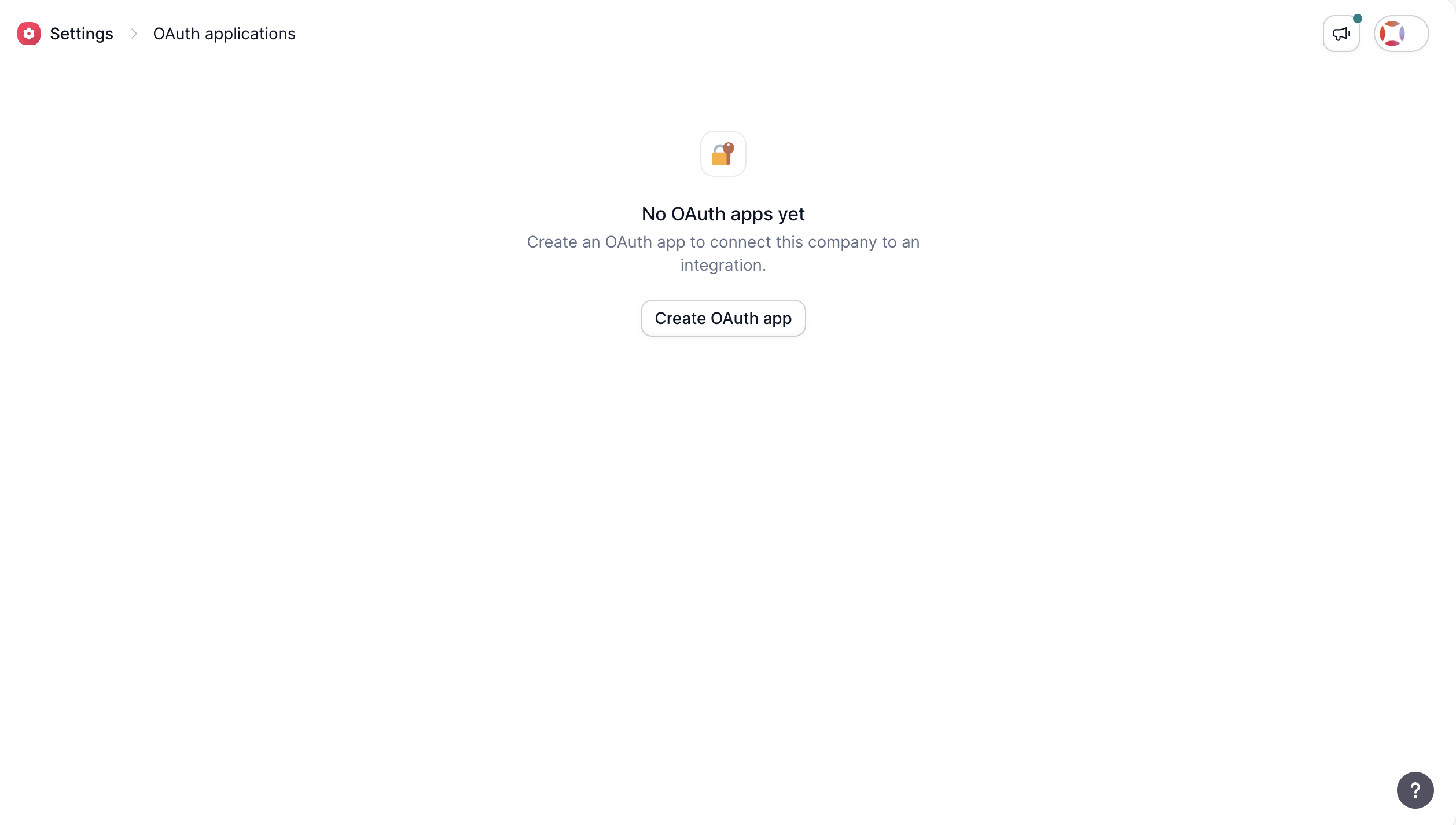
- Select Create OAuth app.
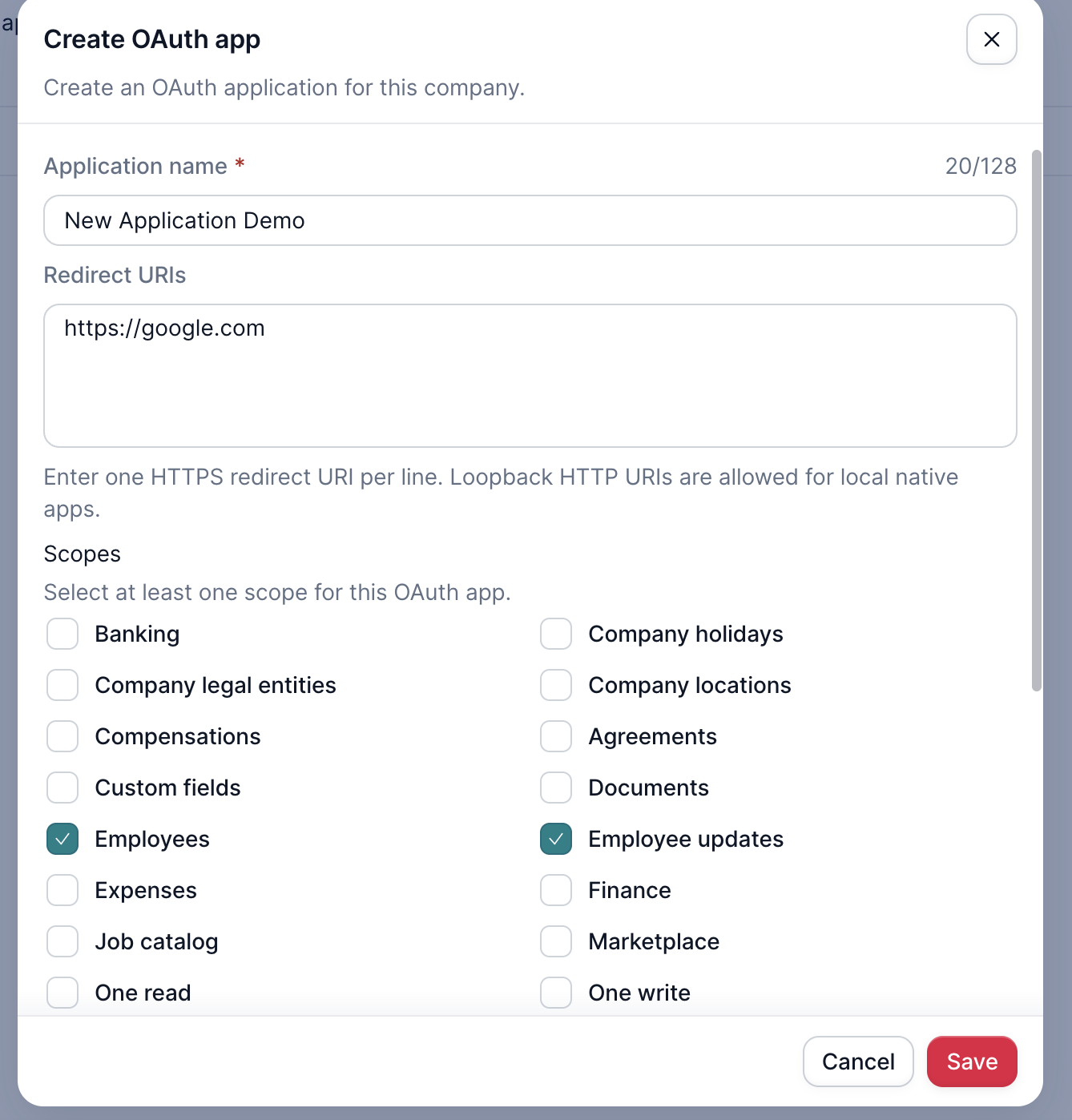
- Enter the application name, one redirect URI per line, and the scopes the integration needs. To test with Postman, use one of these redirect URIs:
-
Postman in browser:
https://oauth.pstmn.io/v1/browser-callback -
Postman desktop:
https://oauth.pstmn.io/v1/callback
If you have doubts about which scopes to apply, you can contact Factorial support.
-
- Choose the client type:
- Confidential client with secret if the application can store a client secret securely on a server.
- Public client without secret for browser, desktop, or mobile applications that cannot keep a secret.
- Select Save.
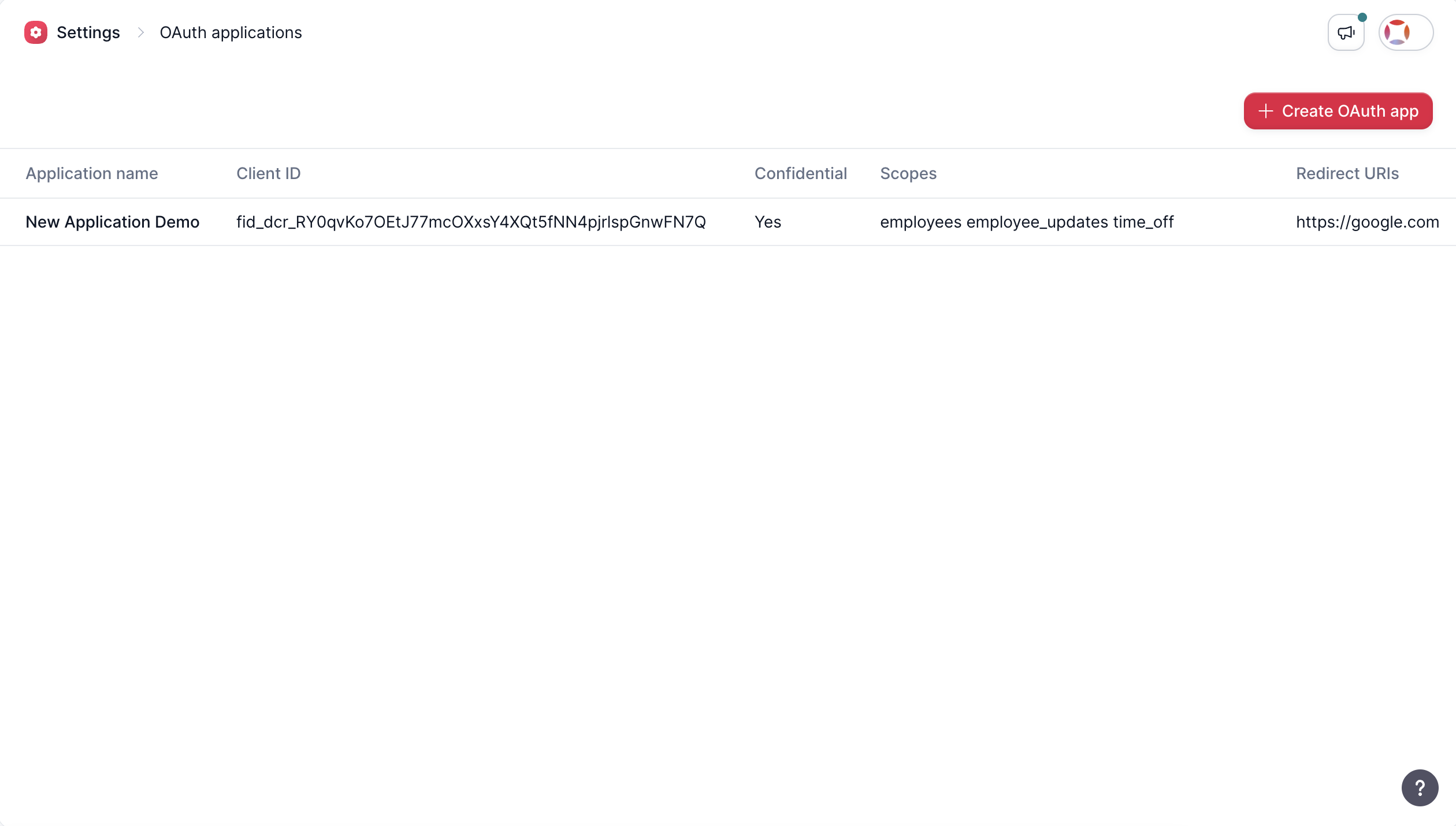
After saving, the OAuth applications page shows the application name, client ID, scopes, and redirect URIs.
Choose the client type
- Confidential clients run on a trusted backend and can keep a client secret private. They authenticate with that secret when exchanging an authorization code for tokens.
- Non-confidential (public) clients run in environments where a secret cannot be protected, such as browser SPAs, mobile apps, or desktop apps. A client secret would be extractable, so it must not be relied on for authentication.
Public clients should use Authorization Code + PKCE
- Generate a random
code_verifierlocally.- Derive a
code_challengefrom it and send that with the authorization request.- Keep the verifier only in the client.
- Send the original verifier when exchanging the returned code for tokens.
Save Client ID and Client Secret
- The Client ID is always visible in the OAuth applications list.
- A client secret is created only for a Confidential client with secret. Copy it when it is shown and store it securely.
- Verify the redirect URIs and scopes are saved correctly.
Save and rotate the client secretIf the secret is lost or exposed, open the application in OAuth applications and use Rotate client secret, then update the secret in your integration.
Start the authorization request
The OAuth applications page does not start authorization for you. After creating the application, your integration must send the company administrator to the Factorial ID authorization endpoint. For a company-owned flow, use the application's client ID and registered redirect URI, and add resource_owner_type=company:
https://id.factorialhr.com/oauth/authorize?client_id=<CLIENT_ID>&redirect_uri=<URL_ENCODED_REDIRECT_URI>&response_type=code&scope=<URL_ENCODED_SCOPES>&state=<RANDOM_STATE>&resource_owner_type=companyFor demo, use https://id.eu2.demo.factorial.dev/oauth/authorize with the same parameters.
Public clients (PKCE): also add
&code_challenge=<CODE_CHALLENGE>&code_challenge_method=S256, wherecode_challengeis derived from thecode_verifieryour client generated and kept locally.
- The administrator signs in to Factorial, reviews the requested scopes, and authorizes the application.
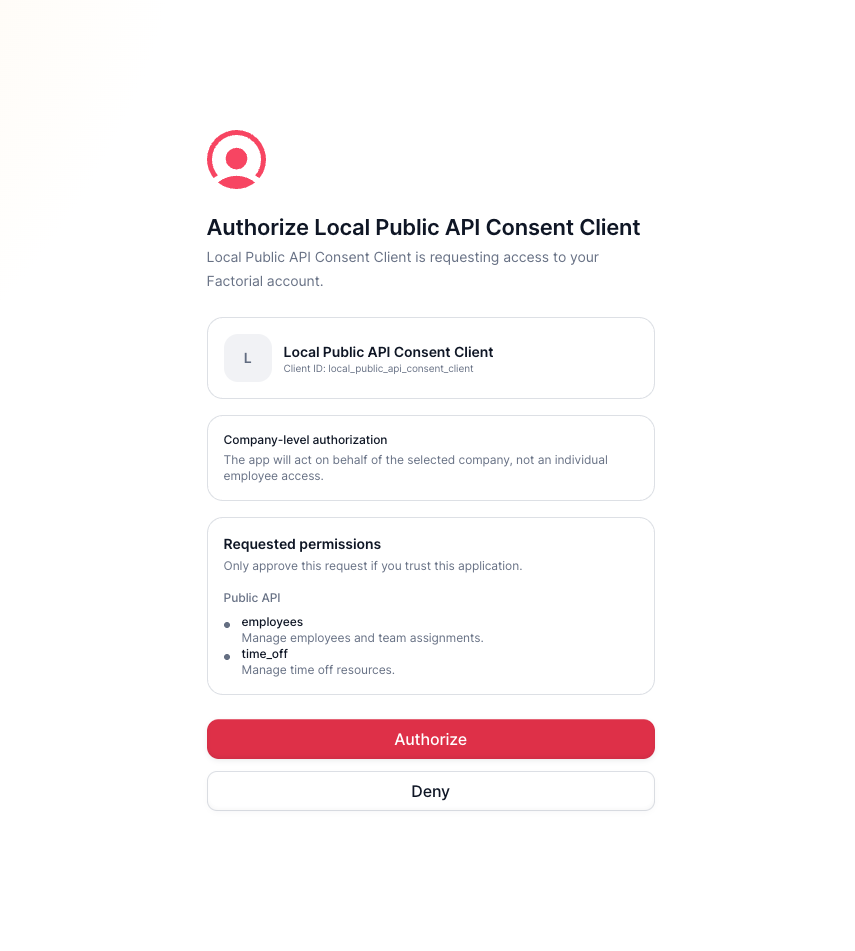
The Factorial OAuth consent screen.
- Factorial then redirects to the registered redirect URI with the authorization code.
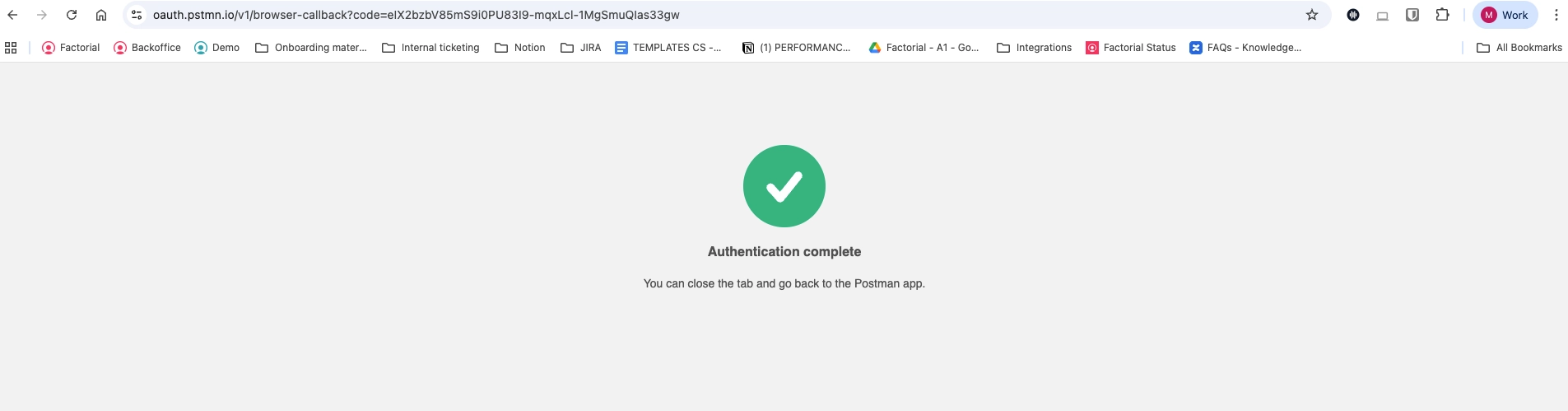
- The URL of that page contains your Authorization Code. For example:

https://oauth.pstmn.io/v1/browser-callback?code=elX2bzbV85mS90PU8319-mqxLcl-1MgSmuQlas33gwIn this example, the code is: elX2bzbV85mS90PU8319-mqxLcl-1MgSmuQlas33gw. If you sent a state value, check that the one returned matches it.
Exchange Code for Access Token
Use Postman to request the token.
- In Postman, go to My Collection → Get data → Authorization.
- Set the Auth Type to
OAuth 2.0.
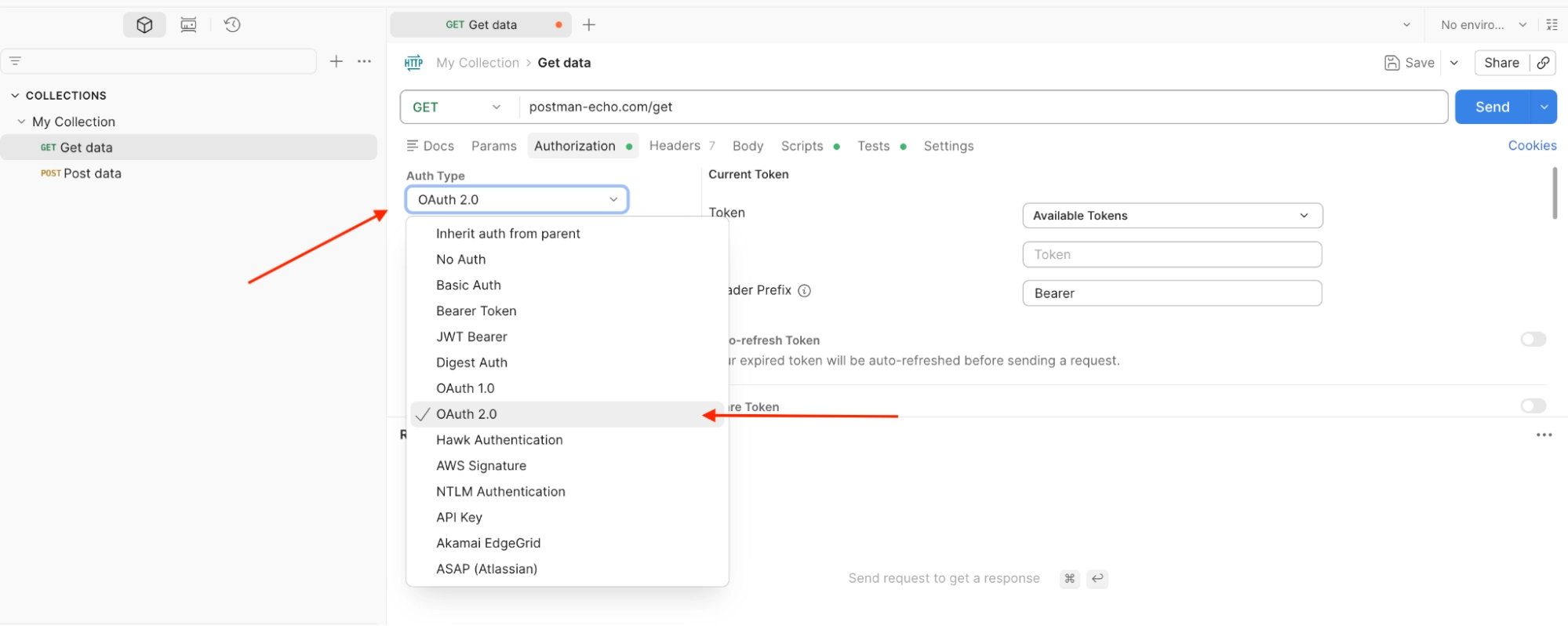
- Fill in the Configure New Token section with the following Factorial ID values:
| Field | Production | Demo |
|---|---|---|
| Auth URL | https://id.factorialhr.com/oauth/authorize | https://id.eu2.demo.factorial.dev/oauth/authorize |
| Access Token URL | https://id.factorialhr.com/api/oauth/token | https://id.eu2.demo.factorial.dev/api/oauth/token |
| Client ID | Your Client ID from the application | Your Client ID from the application |
| Client Secret | Your Client Secret (confidential clients only) | Your Client Secret (confidential clients only) |
For a Public client without secret, set Grant Type to
Authorization Code (With PKCE)and leave Client Secret empty. Postman generates thecode_verifierandcode_challengefor you.
- Scroll down to Auth Request and add a query parameter:
- Key:
code - Value: Your Authorization Code from the previous step
- Key:
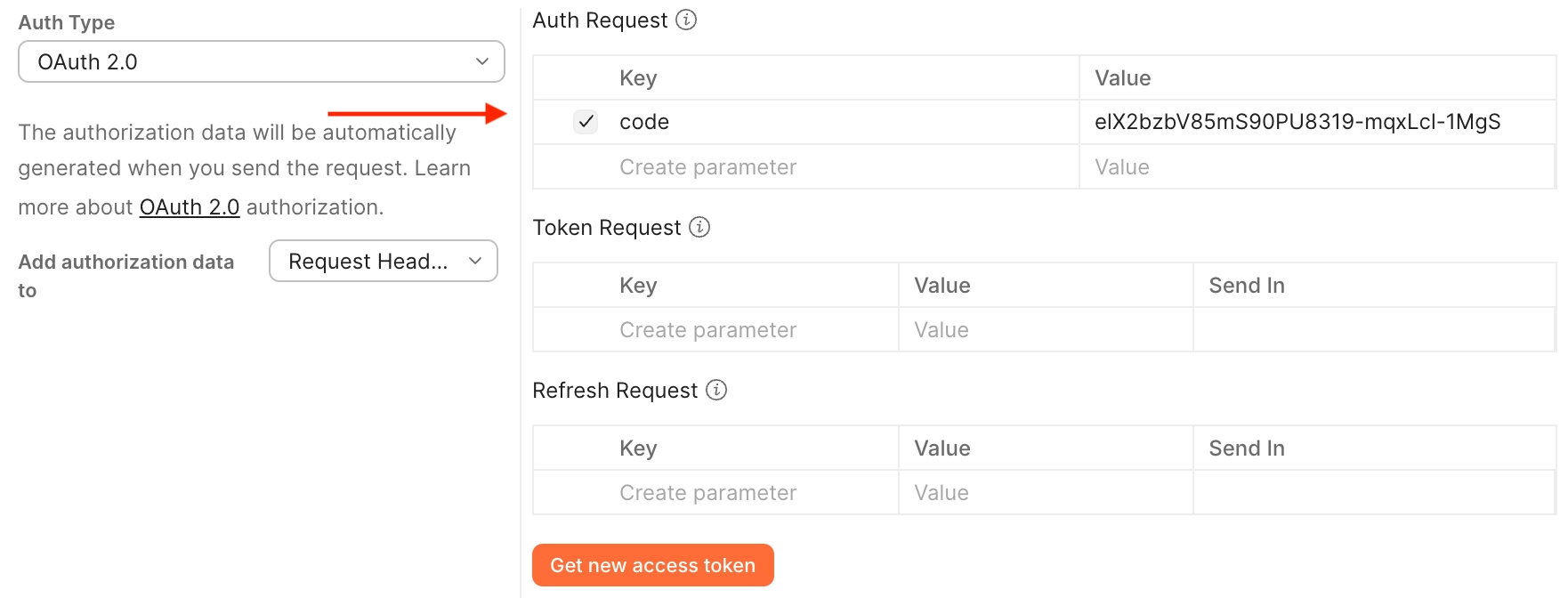
- Click the orange "Get new access token" button.
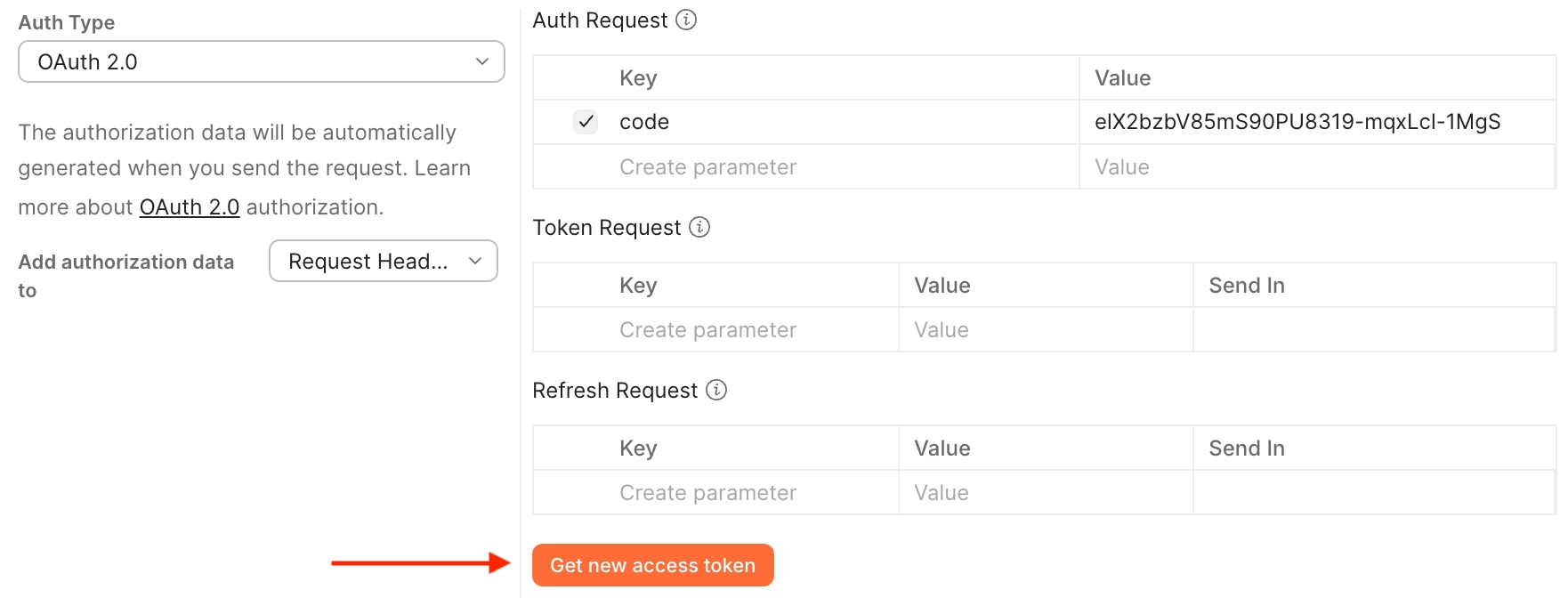
- In the pop-up window, sign in to Factorial if needed, review the requested scopes, and click "Authorize".
- After authorization, a pop-up in Postman will return your Access Token.
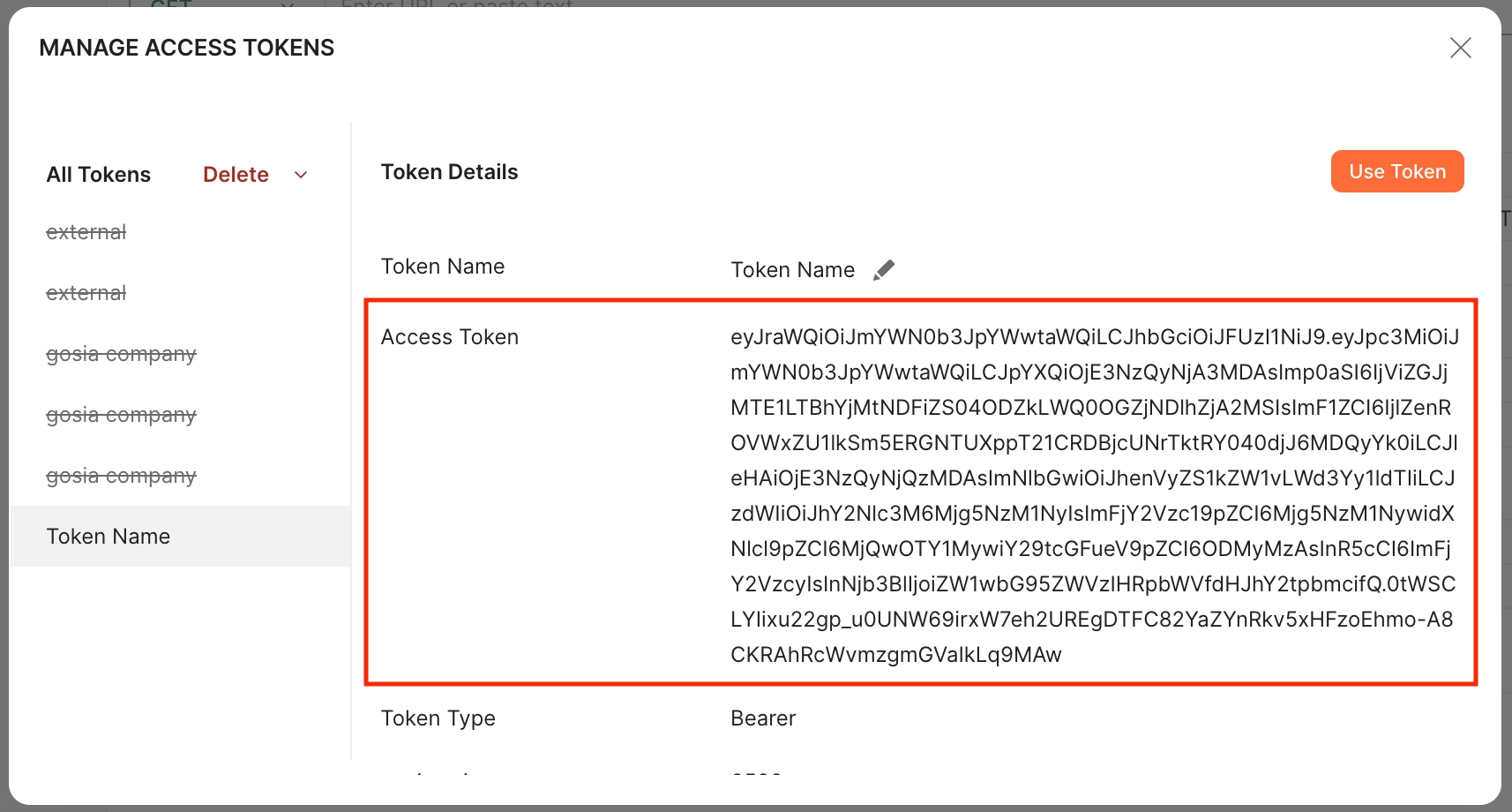
Existing integrationsExisting integrations can keep their current endpoints while they are migrated to the Factorial ID endpoints.
Exchange the code without Postman
Send a POST request to the Factorial ID token endpoint.
Confidential client
curl -X POST 'https://id.factorialhr.com/api/oauth/token' \
  -d 'client_id=<CLIENT_ID>' \
  -d 'client_secret=<CLIENT_SECRET>' \
  -d 'code=<AUTHORIZATION_CODE>' \
  -d 'redirect_uri=<REDIRECT_URI>' \
  -d 'grant_type=authorization_code'
Public client (PKCE): do not send a client secret; send the original code_verifier instead.
curl -X POST 'https://id.factorialhr.com/api/oauth/token' \
  -d 'client_id=<CLIENT_ID>' \
  -d 'code=<AUTHORIZATION_CODE>' \
  -d 'redirect_uri=<REDIRECT_URI>' \
  -d 'code_verifier=<CODE_VERIFIER>' \
  -d 'grant_type=authorization_code'
For demo, use https://id.eu2.demo.factorial.dev/api/oauth/token.
Video walkthrough
Company Token Expiry: Company access tokens expire after 1 hour. Save therefresh_tokento request new access tokens without re-authorizing.
Refreshing Access Token
Company access tokens are valid for one hour. After this period has expired, request a new access token with a POST request to the Factorial ID token endpoint, providing the refresh token that came with the previous access token.
NoteNon-admin users can perform this action as long as they have the refresh token provided at time of first authentication.
Refresh-token lifetimeStore the refresh token securely and use it to obtain a new access token. If refresh fails because the token or grant is no longer valid, start the authorization flow again.
| Action | Production endpoint | Demo endpoint |
|---|---|---|
| Refresh access token | https://id.factorialhr.com/api/oauth/token | https://id.eu2.demo.factorial.dev/api/oauth/token |
| Revoke token | https://id.factorialhr.com/api/oauth/revoke | https://id.eu2.demo.factorial.dev/api/oauth/revoke |
curl -X POST 'https://id.factorialhr.com/api/oauth/token' -d 'client_id=<YOUR_CLIENT_ID>&client_secret=<YOUR_CLIENT_SECRET>&refresh_token=<REFRESH_TOKEN>&grant_type=refresh_token'Public clients: omit
client_secret.
Updated 1 day ago